Tampilkan postingan dengan label Smartphone. Tampilkan semua postingan

Sabtu, 21 Februari 2015

Nokia Lumia 1020 review

Indra Pratama     15.06    
I shared some of my initial experiences with the Nokia Lumia 1020 and some early photos captured around Seattle . After a week I returned the evaluation unit and purchased my own Lumia 1020 . After two full weeks with the Nokia Lumia 1020 it is easy for me to state that it is the best Windows Phone device I have used over the last three years.
In July 2010 I wrote the definitive guide to the Windows Phone 7 technical preview and I can still clearly remember how impressed I was with the refreshing user interface of Windows Phone. I continue to be pleased with the metro UI and use of Live Tiles, it still offers something different than iOS and Android.

Hardware

Nokia first released the Nokia N9 in September 2011, followed shortly by the Nokia Lumia 800. People were impressed by the new Nokia designs with curved front glass, use of polycarbonate plastic in the shell, a vivid color selection and a focus on imaging. Most Lumias today have these same base design features and Nokia is becoming recognizable due to them.
If you just look at the front of the Lumia 1020 then you might mistake it for a Lumia 920 or 928. You can tell a difference immediately when you pick it up though because the 1020 is 27.4 grams (0.97 ounces) lighter. While an ounce doesn't sound like much, you can feel it when holding the devices in hand side-by-side. I'm not saying the Lumia 920 was too heavy, but it had more heft than most other modern smartphones.
I am very pleased that Nokia went with matte finishes on all three colors of the Lumia 1020. I previously had a glossy white Lumia 900 and glossy red Lumia 920 and I ended up putting soft touch shell cases on those devices to help improve my grip on them. The glossy finishes also seemed to scratch pretty easily while I don't notice them on the matte finish so far. I personally find that the matte finish also gives the Lumia line a bit more premium look and feel. The yellow 1020 I have looks great with the black button and camera accents too.
The Lumia 1020 is the first Windows Phone to come with 2GB of RAM and while Windows Phone does well with fairly low specs, the increased RAM does help with camera and gaming functions. The display looks great with 1280x768 resolution in 4.5 inches and AMOLED ClearBlack technology. Nokia does a fantastic job with their displays and I have zero complaints on the Lumia 1020, even though other Android devices have higher resolution.

41 megapixel camera

Lumia10203
(Close-up of Rolo smore)
There are many articles and comparison regarding the Lumia 1020 camera, but I highly recommend you read the excellent analysis from Steve Litchfield in his camera feature article and in his 808 PureView vs Lumia 1020 comparison. Brian Klug also takes a detailed look at the camera and camera grip accessory.
The camera is absolutely fantastic and while the Xenon flash doesn't seem to perform as well as it does on the 808 PureView, it still beats out other modern smartphones. The camera module is large on the Lumia 1020 and if mobile photography is not that important to you then I wouldn't recommend the 1020 since you do compromise on size. Then again, I am getting tired of seeing blurry, poor quality pictures shared by family and friends and am actually a bit sad when those crappy photos are the only memories they have of those moments. The Nokia Lumia 1020 lets you capture those moments and remember them in vivid clarity later on while still giving you a very functional smartphone experience.
Feel free to check out my full resolution image samples on Flickr. Most of these were taken in auto mode using the Pro Camera utility. I plan to spend a LOT more time learning the ins and outs of the camera using the tutorials and am very pleased with the performance. It doesn't take quite as good of photos as the Nokia 808 PureView I have, but the OS is much more usable and I love the editing tools on the phone.
(Downtown Seattle)
Nokia is also a leader in mobile phone video, which some people often forget about. Their video stabilization is unmatched in the smartphone world and the system in the 1020 is even more advanced than what we see in the 920, 925, and 928. The stereo audio recording is also pretty amazing and you can go to a concert and truly capture the experience to share later with family and friends.
I'll discuss some Nokia software enhancements a bit later, but there is a full suite of Nokia applications available related to the camera and Microsoft now even lets you specify which camera utility launches when you press and hold the physical camera button. The newest camera utility is called Nokia Pro Camera and the Lumia 1020 is the first device to get this software. Nokia Pro Camera lets you capture photos in auto mode or take full control over exposure, shutter speed, ISO settings, white balance, and focus. I am excited to use and learn from my Lumia 1020 and the tutorials as I attempt to become a better mobile photography.
Nokia Smart Camera launched on the Nokia Lumia 925 and works similar to Zoes on the HTC One. Instead of capturing short video clips and extracting still photos, Smart Camera captures a sequence of photos in burst mode and then lets you use those photos to get the best one, add motion effects, remove unwanted objects, and choose the best face for each person in a group shot.
You will also find camera lenses and utilities from Nokia called Panorama, Glam Me Lens, Creative Studio, PhotoBeamer, and Cinemagraph. The utilities offer interesting ways to capture and edit your images so you can create fun things to share. I was also very pleased to see Nokia add a video trimmer and YouTube upload clients like I have been asking about for months. I like to capture video of events, but then just upload and share selected parts of the videos and until now there was no work done on the video editing experience in Windows Phone.

Accessories

Along with the hardware, in typical Nokia fashion you will find a couple of cool accessories designed just for the AT&T Nokia Lumia 1020. I bought a black Camera Grip at the AT&T store and then Nokia loaned me a black Wireless Charging Cover to test out. The Camera Grip is available in yellow, black, or white while the Wireless Charging Cover is black or yellow. The Wireless Charging Cover is still difficult to find in stores. Both are similar in that they have large round openings for the camera module with the four corners fitting over the sides to secure the cover and grip over the 1020.
The Camera Grip is a bit more advanced, yet reasonably priced at $59.00. For this price you get a 1020 mAh battery and physical camera button on a larger end piece. Nokia's site states you can get up to 285 more photos or an extra 48 minutes of video with the Camera Grip attachment. When you slide your 1020 in place, you get the feeling your phone is definitely more camera than phone in this mode as the microUSB port makes the connection. There is also a universal tripod mount on the bottom of the camera grip to help you capture steady high resolution shots.
Inside the Wireless Charging Cover you can see to metal contacts where those on the back of the 1020 make a connection so that the internals of the Charging Cover facilitate Qi charging. With charging plates at home and at work, I have grown into a huge fan of wireless charging due to its convenience and ability to help clean up a wire mess.

Nokia software enhancements

I have written a couple of times about the fantastic value added by Nokia for Windows Phone owners. The Lumia 1020 continues with software and service offerings such as Nokia Music+ , the HERE Maps suite (City Lens, Drive+, Maps, and Transit), Nokia Trailers, Ringtone Maker, AccuWeather, and more.
Nokia has been providing some additional utilities on its Windows Phone line, including storage check, Dolby audio support, touch sensitivity settings, and more. We now see some fantastic functionality from the Nokia N9 MeeGo device, including the ability to double tap on the display to wake the device and the ability to enable Glance. Glance allows you to have the time and phone status appear on the display when everything else is off. This includes a Peek mode where you can wave your hand over the phone to show the status. A final custom feature is the ability to adjust your display's color profile.

Apps and the Windows Phone Store

Microsoft recently reported there are now more than 160,000 apps in the Windows Phone Store and for my personal needs there are just a couple missing that I use on iOS and Android. These include my bank (USAA), who was one of the first on Windows Phone and now appears to have given up too early, MLB At Bat, Alaska Airlines, and Google services like Google+. There are alternatives that work just fine for Vine and Instagram with nearly ever other app I use already on Windows Phone. In addition, Halo: Spartan Assault, is coming to all devices soon.
If there are some missing apps, then make sure you find out about mobile optimized websites. Alaska Airlines reached out to me on a recent trip when I was complaining about a lack of Windows Phone support to inform me that their mobile website lets you check in, change your seat, and even use your phone display as your boarding pass. The website is excellent and meets my needs for that specific service.
During the Lumia 1020 launch we also heard that Flipboard, Path, Vine, and others may be coming soon. I imagine the shrinking app gap will soon disappear and then purchase decisions will come down to the OS user experience and available hardware.

Conclusion

There is no doubt that the Nokia Lumia 1020 is the best Windows Phone device ever made. It may still not be for everyone since size is more important than a serious camera to some folks. I have absolutely no regrets so far in moving from a Verizon iPhone 5 to the Lumia 1020 and discover new functions with the camera daily.
The complaints about the price are being made without reason. The 32GB iPhone 5, a model almost a year old, is priced the same as the Lumia 1020 under contract and is even more without a contract. If you look at the powerful camera in the Lumia 1020, it is easy to justify the premium price and I just ignore those who try to argue about price because they are not comparing apples to apples.

Rabu, 07 Januari 2015

Cyanogenmod 10 (Alpha) Preview for HTC Sensation

Indra Pratama     11.09    
Since Google has released source code of Jelly Bean, Everyone is now looking for it to try out on their devices. As all devices aren’t getting the latest Android 4.1 update officially due to hardware limitations (or not confirmed yet), there is only one way to get it run on your device i.e. Custom ROM. Though HTC hasn’t confirmed official Jelly Bean update for their first Dual Core phone, XDA Member bruce2728 has done it already. Yes bruce2728 has ported Cyanogenmod 10 (which is based on AOSP sources of JB) for the HTC Sensation. Well that is certainly a good news for Sensation Owners but the bad news is that the ROM is in its early stage of development (alpha) & therefore there are some major things like Camera, Wi-Fi, Audio etc. which are not yet working properly & hence it is not suitable for the daily use. Of course he will be fixing them as development goes on but you must be patient till he make some major changes in it.
Here is the list of working / not working things quoted on the official development page :
Not working
Wifi
Audio
Camera
Video playback is buggy
Working
Radio
Hardware acceleration
button lights
vibration
USB
Charging
Led
Has root access
Bluetooth is partially working, it scans but I can’t get it to pair.
If you are looking for Jelly Bean port to run on your device too, Head over to the official development & Do let us know how it is working for you in the comments below, we will be glad to hear from you. (Please note that, right now CM10 is just a pure preview of Jelly Bean, final CM10 will be likely to have more customization options available than this).
Have a look at this video to preview CM10 before installing it on your HTC Sensation..

Android 4.4 KitKat via Cyanogenmod 11 for Galaxy W I8150

Indra Pratama     11.03    

Samsung Galaxy W also known as Wonder is an Android 2.3 Gingerbread running mobile. Even though this mid range device can run Android 4.4 KitKat flawlessly, it is never updated beyond Gingerbread. Right now most of the Android smartphones run Android 4.0 ICS and above. So you might be feeling ashamed of your device. You don’t need buy for that.
The latest Android 4.4.2 KitKat is available for Samsung Galaxy W via Cyanogenmod 11 custom ROM. One of the recognized developer arco68 has left no stone unturned to bring this stable ROM for you. Cyanogenmod is one of the renowned custom ROMs. The pure vanilla experience is one of the main feature of this ROM. Lets have a look at the working things of this ROM for Galaxy W.

Working:
Audio
Receiving and making calls
GPS
Compass
Proximity sensor
Wifi
Bluetooth
USB mass storage
HW accelerated gui
HW accelerated video
Camera
Torch
Wifi/USB tethering
USB OTG
Vsync
Hybrid ION/PMEM
This list clearly indicates that a stable built of Cyanogenmod 11 is available for Samsung Galaxy W. Go through few simple steps to install Android 4.4.2 KitKat on Galaxy W.
The procedure mentioned ahead for installing a custom ROM is considered as risky may cause damage to your mobile. It is requested for newbie that they should not follow it if they are unaware of this fact. Go through the article completely before going for execution. We or developers are not responsible for bricked or damaged devices after inculcating these steps.
This custom ROM intended only for Samsung Galaxy W with model number I8150. Do not try it on any other mobile. It might lead to some serious problem with device.
Note: Flashing custom ROM voids the warranty. So think before going for it
  • Check that your device is charged at least up to 75% so that there will not be any interruption due to low battery.
  • Since all the data is wiped during the installation of custom ROM, it is better to take a backup of all important stuffs like SMS, MMS, APN, contacts etc. to the external memory card.
  1. How to Backup Android Contacts and Text Messages (SMS / MMS).
  2. How to Backup Call logs, APNs and EFS folder from your Android Device.
  • You need to install custom recovery like clockworkmod recovery (CWM) on your mobile. Without any custom recovery you cannot flash custom ROM.
  • Enable USB debugging on. Follow this path for it.
Setting->Developers option->USB debugging on
Procedure to install Android 4.4 KitKat via Cyanogenmod 11 custom ROM on Samsung Galaxy W I8150
  • Download latest build of Cyanogenmod 11 for Samsung Galaxy W Mini from official development page.
  1. Cyanogenmod 11 for Galaxy W I8150.
  • Since custom ROM does not include Google Apps (due to some license issues), you have to download GApps (contains Gmail, Play Store, Play books etc.) separately and install it afterwards.
  1. Gapps for Android 4.4.2 KitKat
  • After downloading both files, connect your mobile to PC via USB cable and enable mass storage mode on. Copy both files to the external memory card on convenient location and do not extract them.
  • Disconnect mobile from computer and switch it off. Boot your mobile into recovery mode. To do so, press and hold volume up + home + power button simultaneously until you boot into recovery mode. Use volume keys for navigation while power key for selecting options.
  • It is recommended to take a nandroid backup of current system. You can refer this articlefor help (Of course this step is not mandatory).
  • Now select wipe data/factory reset and then wipe cache partition to wipe all the data on phone and clear caches. Remember to take a backup before executing this step.
  • Next select install zip from sdcard followed by choose zip from sdcard. A list of files will appear in front of you. Select cm-11.zip file for installation. Select yes in next step for confirmation.
  • This will take few minutes for installation. In order to avoid boot loops, do factory reset/wipe data again.
  • Repeat the step of install zip from sdcard followed by choose zip from sdcard. But this time choose GApps file for installation.
  • In the last select +++++go back+++++ and reboot system now. Remember first boot takes more time than usual.
That’s it! Android 4.4 KitKat is now installed on your Samsung Galaxy W. Thanks to Cyanogenmod 11 custom ROM compiled by arco68. Share your KitKat experience with us. If you have any doubts regarding procedure or anything then post them in comments section. We shall find a solution for them.
Tip: In case you want to revert to previous ROM you can easily do it just by entering into Recovery mode. Then select the Backup and Restore option from the recovery mode. Then select restore option & choose your latest backup to restore. Even you can flash official firmware.

Set Up and Shoot an Enchanted Photoshoot in the Woods

Indra Pratama     10.08    


Twice a month we revisit some of our reader favorite posts from throughout the history of Phototuts+. This tutorial was first published in September, 2009.
In this article Miguel will be taking you through the process of a portrait-based outdoor photoshoot on a budget. The only things you need to recreate this collection of images are yourself, a friend or client, a camera with a lens and the great outdoors. This set of tips will show you that you don't need an expensive setup of lenses, reflectors and lights to create stunning portraits to be proud of.
This series of portraits was recently taken for a local client to serve as promotional shots for his solo musical project. His brief to me was that he wanted the photographs to not necessarily feature himself as the main focus, but rather of the beautiful surroundings with himself within them. He didn't want the photos to be cliché or cutesy, and he requested that they were to be as natural as possible.
In the following steps I hope to show you what it takes to nail an outdoor photoshoot with as little equipment as possible, cover the difficulties you might encounter, and share several killer tips for working in the field—no pun intended! You can catch the full collection of these images on Flickr.
  • Canon 400D Digital SLRenchanted woodland photo shoot camera with standard 18-55mm lens kit. For this purpose, try to use a DSLR for best results, but any digital camera can be used as long as it has some manual control of exposure.
  • Model/subject with an extra change of clothes. One reason it's smart to bring an extra set of clothes is that if you get one outfit dirty within 15 minutes, you don't have to call off the rest of the shoot since you'll have a backup change of clothes. Another reason you might do this is purely for variety. Different outfits instantly make your set of photos more versatile as a package, and this is a bonus for both your portfolio and the client's promotional material.
  • Adobe Photoshop, for post-processing the photographs.
Choosing the right time and weather conditions
Believe it or not, a sunny day is a pain for taking portraits more often than not. You get models squinting in the sunlight, nasty blown-out skin highlights as well as incredibly difficult to tame exposure—you either end up with shaded areas that are too dark or brightly lit areas that are too bright. It's a nightmare!
Slightly duller and cloudier lighting can be the best to diffuse the light evenly, and even if the photos look dull in-camera you can always add the needed punch later in Photoshop. Remember—it's next to impossible to bring back detail in a photo. This applies to blacked-out shadows and blown-out highlights, so ideally you'll want tonal information in both ends of the light spectrum.
Time-wise, the best period of the day to shoot is just after sunrise, or for the lazy, just before sunset. This time period skips the intense afternoon sun that creates harsh lighting conditions and it can create lovely long shadows due to the sun being so low in the horizon. But make sure it isn't too close to sunset either, as light escapes quicker than you realize. A good rule of thumb I have is to go out and shoot approximately one-and-a-half to two-hours before sunset. This set of photos took place between 17:30 and 19:30 during early August in the UK.
enchanted woodland photo shoot
Camera settings
For the vast majority of the photographs, I shot in Av mode which adjusts the shutter speed automatically to calibrate against the desired aperture. During this mode, you'll want to have your aperture on about 5.6 to make sure you still get nice, sharp focus, though you can go as open as your lens allows if you find the shutter speed is slower than 1/30.
If you still find that with the widest aperture your shutter speed is still too slow, you may need to increase the ISO at the cost of some grain in the image (and DSLR grain is not the good type of grain).
Many would advise you to use a tripod, but I personally feel the dynamics of doing a natural photoshoot with a tripod to be too slow and cumbersome. Ideally, you need to constantly move around, be creative, get down low and up high from one shot to the next, which isn't possible with a tripod. It definitely feels less organic and you want to keep a fast paced, positive uplifting atmosphere with your model.
Having said that, it doesn't hurt to be prepared if you need to capture that one shot that seems to come out blurry every time.
Another thing I'd like to mention is that I find the automatic metering (be it with shutter, aperture or full automatic) will come out too bright. If you have the option, move the exposure metering down a couple of notches so the automatic modes create a slightly more low-key photograph. I tend to find the shadow areas are easier to recover light detail from than the overly bright areas.
enchanted woodland photo shoot
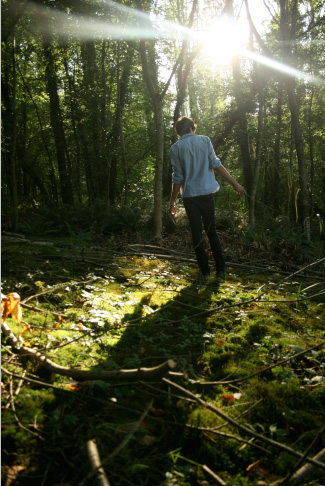
When you are in the woods at this sort of time, you can usually find pools of light on the floor created by the sunlight leaking through the trees, which breaks up the shadows they cast. The aforementioned long shadows created by a low sun can be integrated within these 'pools' of light to create interesting light compositions.
Setting your lens on its widest angle setting and getting close to the floor will emphasize the length of the shadow—as you can see in the image below. When making light and shadow your main concept in an image like this, having your subject face away from the camera and letting the sun create a rim of light around the figure can add to the charm of the image.
enchanted woodland photo shoot
Don't be afraid of the dark side
In areas of little light where the foliage is slightly denser, you can still position your subject to be mainly illuminated from behind by the sun, creating a nice rim light effect that can pop part of your subject from the background in these dim situations.
enchanted woodland photo shoot
Try to add depth to your composition
When composing a photograph like this, one of the first steps I tend to take is to find a foreground to help add depth to the photograph. It's nice to always have a foreground, middle ground and background in an image. If you get nice and low, you can usually find foliage to frame your subject. If you can incorporate a layer between the lens and the subject, that's perfect. Try it!
enchanted woodland photo shoot
Be creative with your focus
This step goes hand-in-hand with the previous. If you experiment with focusing on the foreground rather than your middle ground, you can be pleasantly surprised with the results. Doing so will add variety and interest to some of your photos, and I think you'll agree that just because the model isn't the main focus, this image is still just as good as the rest.
enchanted woodland photo shoot
Experiment with tilting your camera sideways slightly. This can instantly make the feel of your image very different. It adds a certain edge that can make your shot.
enchanted woodland photo shoot
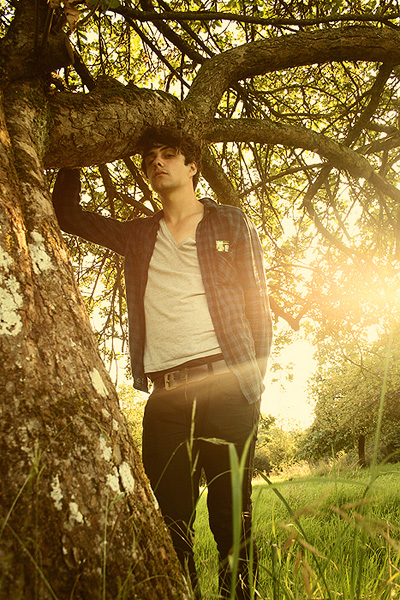
I previously mentioned not to be afraid of the dark side. This applies equally to the bright side. You can position your subject so that he or she is facing the sun sideways, then position yourself in front of him or her and adjust your angle until you get a slight lens flare. There is nothing wrong with a bit of lens flare, but please use this sparingly! When used well, it can create a nice washed-out vintage dreamy effect.
enchanted woodland photo shoot
A low angle can work well when trying to emphasize a figure
In this shot I tried to make the model the focus point so that he demands attention, and getting down low and using the tree trunk as a lead to the top of the image helped me achieve that. When shooting from below you tend to make a person seem menacing and authoritative, and similarly when you photograph someone from above they tend to be diminished and made to seem less important.
enchanted woodland photo shoot
Some photographs work better as black and white images
In this particular shot, the original colors seemed to suck the life out of the photo. In Photoshop you can desaturate an image and then give it a subtle color tint. This will turn your photo into a more 'artsy' shot. Like in the example below, it makes the difference between binning a shot and keeping it in the final collection. When you think a photo doesn't really work for you but there's something about it that makes you wonder what could be done to salvage it, I suggest trying to desaturate it to see how it works in black and white.
enchanted woodland photo shoot
Over the next few steps I'll show you how I normally edit shots such as these, and the techniques I used when trying to bring that glowing warm essence of a summery forest to life before handing the shots over to the client.
The first thing you do when you open an image in Photoshop is to crop the image if needed. Next, you may want to duplicate the original layer into a new layer so you can always strip it back to the original if needed at any point, even if you mainly use adjustment layers.
enchanted woodland photo shoot
You may need to adjust the contrast using a Curves adjustment layer, but the contrast of this image is pretty well balanced from the camera as it is. In that case, you would proceed to create a new Gradient Map adjustment layer, and tone it so that it goes from a warm orange to a lighter, yellower tone.
enchanted woodland photo shoot
Bring the opacity of the Gradient Map layer to about 30% (or whatever looks best with your image). You can now start to see a more vintage and washed out tone.
enchanted woodland photo shoot
Create a new Curves adjustment layer and adjust it so as to darken the shadow areas of the image, and set this adjustment layer's mode to Luminosity.
enchanted woodland photo shoot
A neat tip to help force attention on the middle of the photo is to create a new empty layer and fill it with Black, then get the Eraser tool with a soft round brush set to about 20% opacity, and start to erase into the main focus of the image so as to darken the edges of the photo. One thing I'd advise you to do is to always erase light areas such as light sources (the sun in my case), as otherwise they will look obvious when a vignette is applied to them.
enchanted woodland photo shoot
Drop the Black layer to around 15%, as this effect looks best when used subtly. The Layers palette should look something like the one below.
enchanted woodland photo shoot
Once you've saved your .Psd copy of the image you can flatten the layers, resize the image for web—which in this case is 600px high—and then slightly sharpen it by going to Filter -> Sharpen -> Sharpen. If the image looks overly sharp, you can fade the last applied effect by pressing Cmd+Shift+F, and in this example I set fade to 40%.
That's it! You can then save your image. However, if you're applying this look to a lot of photographs you could save a template version as a .Psd file right at the step before you applied the vignette, so that the adjustment layers are all still editable. Once you have another document open, you can simply drag these adjustment layers to the new image and adjust them as needed.
enchanted woodland photo shoot

10 Top Tourist Attractions in Japan

Indra Pratama     09.56    
10. Hiroshima Peace Memorial

Hiroshima Peace Memorial
The Hiroshima Peace Memorial is a haunting tribute to the lives lost when the atomic bomb was dropped on Hiroshima on August 6, 1945. Set in a park, the memorial features Genbaku Dome, the only building left standing in the vicinity after the bomb dropped. This harsh reminder of a world at war reminds visitors of the importance of human life and honors the victims so they will never be forgotten.

Where to Stay in Hiroshima

9. Jigokudani Monkey Park
Jigokudani Monkey Park
Jigokudani Monkey Park is a famous hot spring area near Nagano,. The name Jigokudani (meaning “Hell’s Valley”), is due to steam and boiling water that bubbles out the frozen ground, surrounded by steep cliffs and formidably cold forests. It is famous for its large population of wild Snow Monkeys that go to the valley during the winter when snow covers the park. The monkeys descend from the steep cliffs and forest to sit in the warm hot springs, and return to the security of the forests in the evenings.

8. Kiyomizu-dera
Kiyomizu-dera
The Kiyomizu-dera Buddhist temple is located in Eastern Kyoto and can be traced back as far as the year 798. An indoor waterfall fed from the outside river keeps the temple in harmony with nature and not one nail was used in construction. While locals used to jump off the edge to have a wish granted (with a survival rate of 85.4%), modern visitors can enjoy the shrines and talismans and artwork on display without risking life and limb.

Where to Stay in Kyoto

7. Himeji Castle
Himeji Castle
The Himeji Castle is considered the best existing example of Japanese castle architecture. It was fortified to defend against enemies during the feudal period, but it has been rebuilt many times throughout the centuries and reflects the different design periods. It survived the bombings of World War II and is frequently seen in domestic and foreign films, including the James Bond movie “You Only Live Twice”. The white exterior and design give the castle the appearance of a bird taking flight, earning the the castle the nickname ‘white egret castle’.

6. Great Buddha of Kamakura
Great Buddha of Kamakura
The Great Buddha of Kamakura is a colossal outdoor representation of Amida Buddha, one of Japan’s most celebrated Buddhist figures. Cast in bronze, the Great Buddha stands at over 13 meters (40 feet) high and weighs nearly 93 tons. The statue reportedly dates from 1252. Although it originally was housed in a small wooden temple, the Great Buddha now stands in the open air as the original temple was washed away in a tsunami in the 15th century.


5. Todaiji Temple
Todaiji Temple
The Todaiji Temple in Nara is a feat of engineering. It is not only the world’s largest wooden building, it is home to the world’s largest bronze Buddha statue. Surrounded by beautiful gardens and wildlife, the Kegon school of Buddhism is centered here and the grounds hold many artifacts of Japanese and Buddhist history. Deer are allowed to freely roam the grounds as messengers of the Shinto gods.

Where to Stay in Nara

4. Tokyo Tower
Tokyo Tower
The Tokyo Tower is a testament to the advancement of technology and modern life. Inspired by the Eiffel tower design, it is the second tallest man-made structure in Japan and functions as a communications and observation tower. Visitors can climb the tower for unparalleled views of Tokyo and the surrounding areas as well as visit shops and restaurants.

Where to Stay in Tokyo

3. Tokyo Imperial Palace
Tokyo Imperial PalaceThe Emperor of Japan makes his home at the Tokyo Imperial Palace. It also functions as an administration center and museum to showcase Japanese art and history. The palace is set on the ruins of older castles that were destroyed by fire or war, and architects have honored the past by incorporating design elements of the different eras into the modern palace. The new palace is surrounded by traditional Japanese gardens and has many reception and function rooms to receive guests and welcome the public.

Where to Stay in Tokyo

2. Mount Fuji
Mount Fuji
Mount Fuji is the highest mountain in Japan at 3,776 meters (12,388 ft). The volcano’s exceptionally symmetrical cone is a well-known symbol of Japan and it is frequently depicted in art and photographs, as well as a popular tourist attraction for sightseers and climbers. An estimated 200,000 people climb Mount Fuji every year, 30% of whom are foreigners. The ascent can take anywhere between three and eight hours while the descent can take from two to five hours.

Mount Fuji Guide

1. Golden Pavilion
#1 of Tourist Attractions In Japanflickr/rc!
Kinkaku-ji or the Temple of the Golden Pavilion is the most popular tourist attraction in Japan and Kyoto. The pavilion was originally built as a retirement villa for Shogun Ashikaga Yoshimitsu in the late 14th century. Unfortunately, the pavilion was burnt down in 1950 by a young monk who had become obsessed with it. Five years later, the temple was rebuilt as an exact copy of the original. Emphasis is placed on the building and surrounding gardens being in harmony with one another. The pavilion is covered in gold leaf which highlights the reflection of the pavilion in the pond and the pond’s reflection on the building.morial is a haunting tribute to the lives lost when the atomic bomb was dropped on Hiroshima on August 6, 1945. Set in a park, the memorial features Genbaku Dome, the only building left standing in the vicinity after the bomb dropped. This harsh reminder of a world at war reminds visitors of the importance of human life and honors the victims so they will never be forgotten.

© 2011-2014 Look & Read. Designed by Bloggertheme9. Powered by Blogger.